
How it works
How school dismissal works with Schoolhouse Driveline
Staff at the curb send in a Family ID, the classroom sees it, and students walk straight to the right car, bus or program. Watch the video, then scroll down for a closer look at each step.
How it works
School dismissal in three easy steps
Every family gets a Family ID. Staff at the curb send it in, the classroom sees it, and students walk straight to the right car, bus or program.
1
Driveline Dispatch
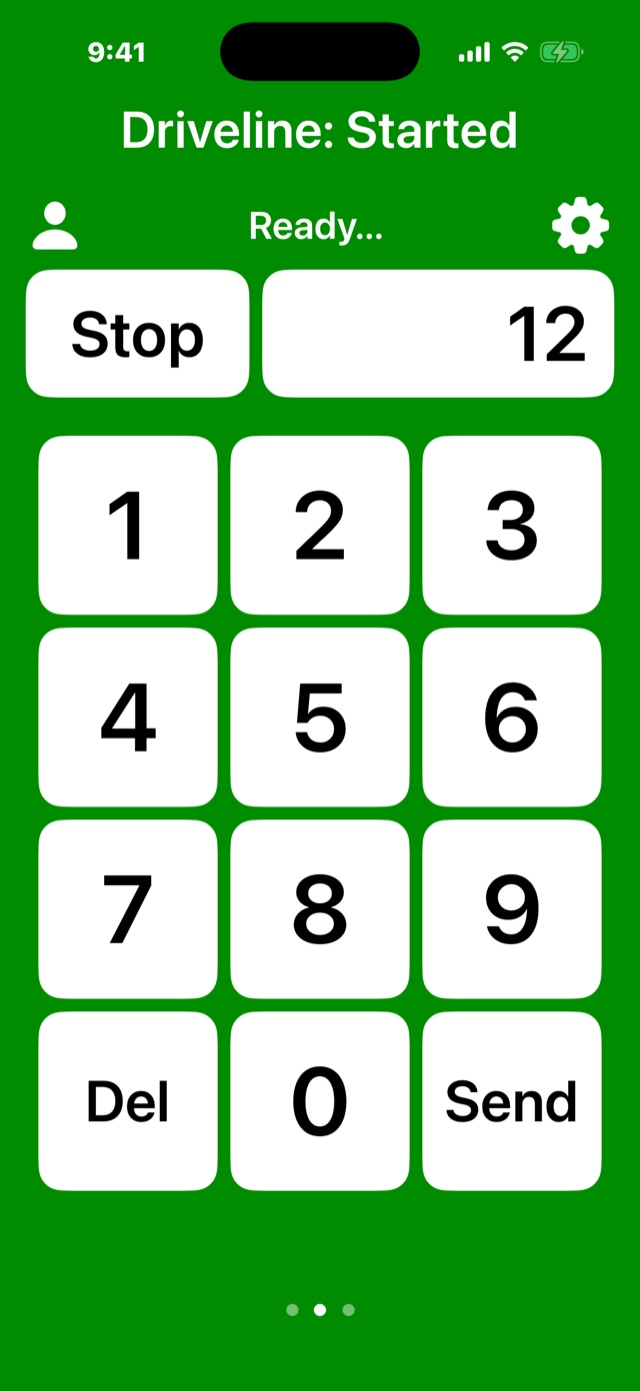
Staff at the curb type in the Family ID on the car’s hang tag using a phone, tablet or computer.
1
Driveline Family
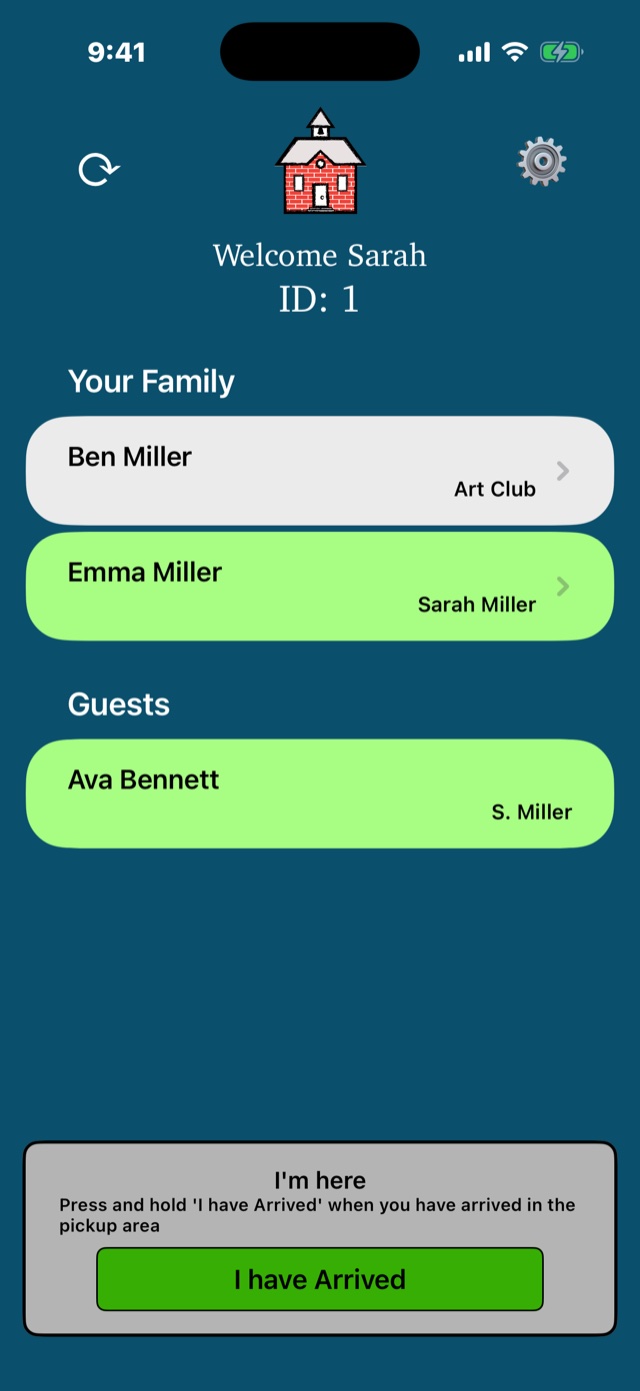
Families using the Family app can tap I Have Arrived instead.
2
Driveline Classroom
Teachers see who’s been called on a classroom screen or the mobile Classroom app. Each student is then sent out to the right pickup spot.
3
Stress-free dismissal
Students arrive at the right car line, cone, bus or program. The dismissal runs smoothly and quietly, and the staff always know the status of each student.
Step 1 · At the curb
Call each family in seconds
Every family has a Family ID on a placard that hangs from the car’s rearview mirror. As cars pull up, staff type the number into Driveline Dispatch and pick the pickup area the car is headed to.
- Any device. Use the Dispatch app on a phone or tablet, or the web dispatch page on any computer.
- Several staff at once. Put dispatchers at every lane. Everyone feeds the same list.
- Color-coded pickup areas. Send each car’s students to the right cone, door or lane.
- Forgot the placard? Search for the student by name instead.
- Extra care when it matters. Flag a student so staff check ID and confirm the adult before release.

Step 2 · In the classroom
Names appear as the dispatcher calls them
Every student tied to that Family ID shows up on the classroom display, color-coded by pickup area, so teachers know who to send and where to send them.
- Any screen. A smartboard, computer or Chromebook, or the Driveline Classroom app on a phone or tablet.
- Just your students. Filter by teacher, pickup location, grade, or all students. You decide.
- Today’s plan at a glance. With one click, teachers can see every student’s destination before the bell.
Step 3 · Out the door
A calm, quiet, stress-free dismissal
Students walk to the right car line, parent, carpool, cone, bus or after-school activity. No bullhorns, no two-way radios, no students missing their number being called. The line keeps moving, and the staff always know the status of each student.
Faster lines
Students are already on their way before the car reaches the loading zone, so the line keeps moving.
Safer pickups
Students are dismissed only when their Family ID is called, and only to the pickup area staff chose.
A record of every day
Your office can look back at who was called, when, and where they went home.
Optional add-on
With Driveline Family, parents check themselves in
Instead of waiting for a dispatcher, parents using the Family app tap ‘I Have Arrived’ when they reach the school, and their students are displayed in the classroom the same way as the dispatched students.
- You stay in control. Schools choose which parents can use ‘I Have Arrived’ and their default pickup location.
- Plans change? Parents update it. Change today’s pickup, mark a child absent or set a weekly schedule, and the classroom sees it all.
- Use both at once. Placards and the Family app work side by side, so you can roll Family out slowly.
Beyond the car line
Every student, every way home
Bus riders, walkers, aftercare and clubs go home through the same dashboard as the car line.
Student destinations
Every student has a usual way home: parent, carpool, bus, walker, art club, or even aftercare. When plans change for the day, the office (or the parent, if using Driveline Family) updates it, and the teacher sees the change before dismissal even starts.
Group destinations
Set up groups like Bus 12, Aftercare or Chess Club and dismiss everyone in a group with one call. Weekly schedules in Driveline Family can send students to a group on the days they attend.
Getting started
Up and running in minutes
Once you have your list of students, setup is quick. It’s all in your control, but of course we’re here to help.
1
Start your free trial
Sign up online in a few minutes. Your first 60 days are free, and no payment information is needed until the trial ends.
2
Add your students
Upload your list of students and their teachers, print your placards and hand them out, and you’re ready to go!
3
Run your first dismissal
Open the classroom display, hand dispatchers a phone or tablet, and press Start. As Family IDs are entered, students are dismissed.
It’s time for less stress
Ready to make your driveline a Schoolhouse Driveline?
Start your free 60-day trial today, or call us at (833) 384-4072 and we’ll walk you through it.